The JDK is included in the app. You do not need to install Java or a JDK separately, or configure paths.
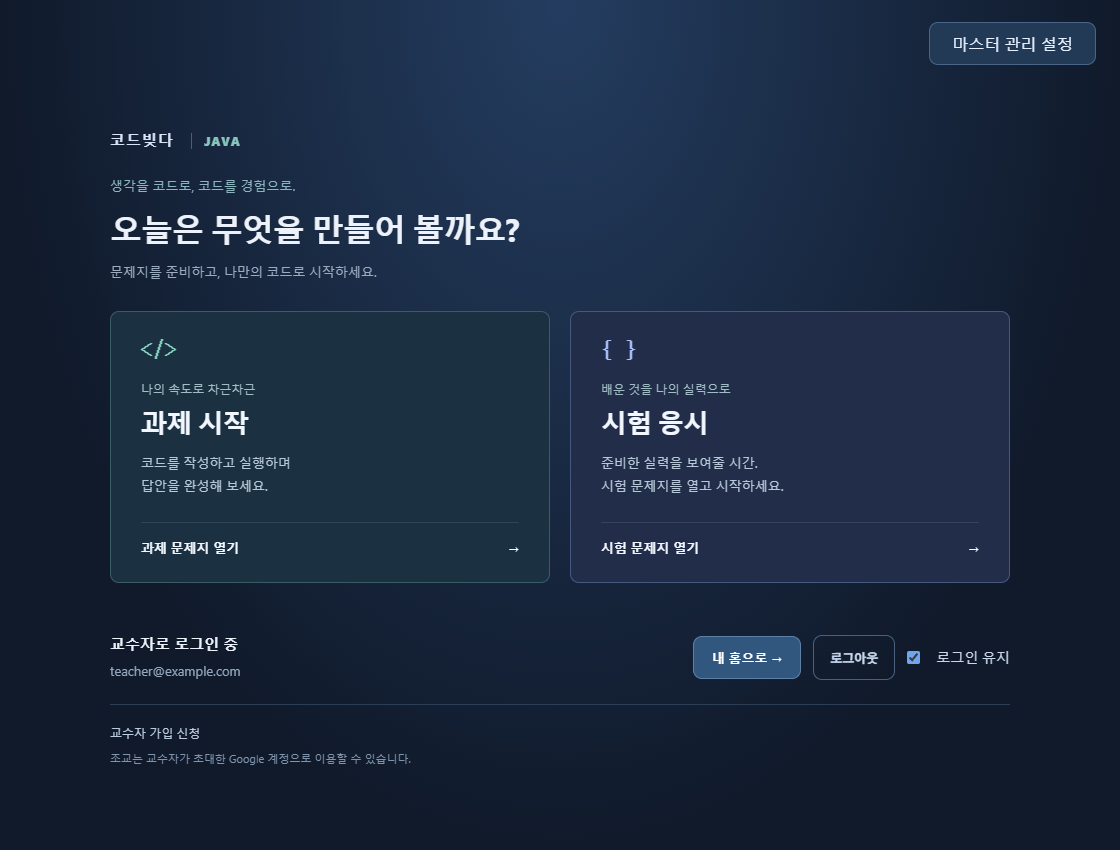
These instructions are in English. App buttons may still appear in Korean; the original labels are shown below where needed.
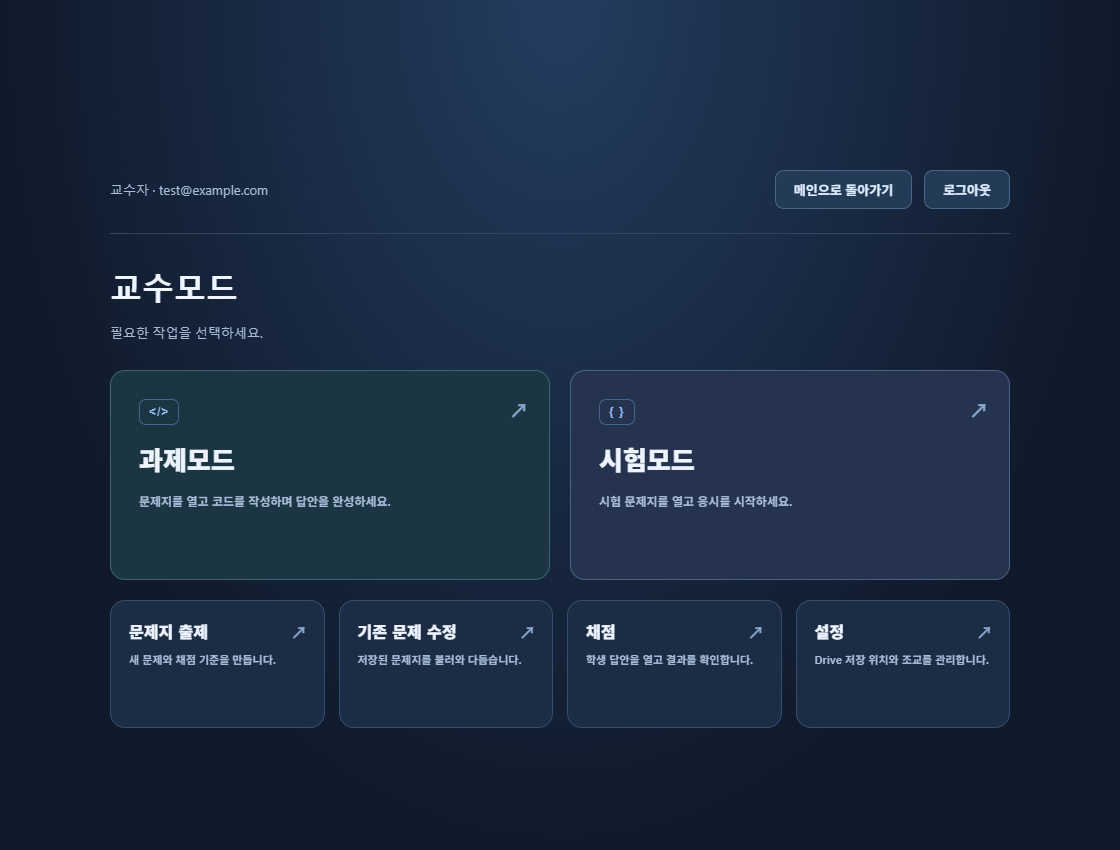
Students can take assignments and exams without signing in to Google. Instructors, teaching assistants, and the master administrator use Google sign-in in the app.
Mac 2.0.9 · Document zoom and code references
In the References tab, read the question on the left and the document on the right. Hold Ctrl or ⌘ and scroll up to zoom in on a PDF or slide, or down to zoom out. Switch to My Code to edit your answer.
Open TXT, JAVA files as read-only references.
Past Mac updates
Mac 2.0.8 · Split view and question-by-question answer release
Read theory questions on the left and references on the right. Each PDF or slide deck remembers its zoom (50–300%) and reading position. Use ⌘F to find a page and ⌘C/⌘V to copy selectable PDF text into your code.
Professors can attach an answer JSON file when opening a room. Students see an answer in the Published Answer tab only after the professor releases that question. Publication does not change the grading criteria.
Students waiting for submission confirmation appear first in the attendance view. Expand the details of a forced exit to see who processed it and when.
Mac 2.0.7 · Exam references and published answers
Open your PDFs and PowerPoint slides in separate tabs. Press ⌘F to find a page or slide. Select text in a PDF, press ⌘C, then paste it into your Java editor with ⌘V. Scanned pages without selectable text cannot be searched or copied.
Mac Quick Look opens supported PPT and PPTX files. If a presentation does not open, export it as PDF and try again.
After joining with your class code and student number, check the roster name in the top left. Use the Answer Code tab to view the solution once your professor publishes it.
Instructors can find students waiting for submission confirmation first, sort by name or student number, and allow individual students to exit. The professor who owns the room can download its diagnostic logs. An external window detection is logged without locking the exam.
Mac 2.0.6 · Theory HTML results and room management
Theory submissions include JSON and HTML. Coding results retain source files, notebooks, and output images; theory questions do not create empty code files.
Instructor final results show student answers and scores alongside correct answers, accepted alternatives, and grading criteria. Answer keys remain hidden from student packages.
Professors can delete their own closed or archived rooms after confirming the room name. Drive files, courses, and rosters are preserved.
Mac 2.0.6 · Runtime paths and exit handling
Improved compilation and execution when temporary paths contain long Korean names or spaces. Java, C++, and AI use short, dedicated work folders while preserving original answers and backups.
Improved submission-waiting and instructor/assistant exit handling. Follow the installation guide to install the app in Applications.
Mac 2.0.6 · Theory questions and Save all answers
Answer single-choice, multiple-selection, short-answer, written-answer, and essay questions on the first page, then continue to coding problems. In exams and assignments, the server automatically grades the first three types; written answers and essays await grading.
Use Save or ⌘S to save theory answers and code from every page together. Exams and assignments use encrypted local backups. Study mode saves a learning JSON file that you can reopen to continue. Spaces, line breaks, Korean, and other Unicode text are preserved.
Final submission locks the answers. Connection failures retry the same saved content. Exit becomes available after your instructor or their assistant confirms the submission.
Mac 2.0.6 classroom workflow
Before an exam, the instructor registers an XLSX or UTF-8 CSV roster for that course. Keep student numbers as text, including leading zeros. Assistants share the roster; only the instructor can replace it. Students join by student number, even when their name spelling differs.
Submitting locks the answers and results. If upload fails, the app keeps the submission pending and retries the same content. Keep the app open. After server storage succeeds, wait for the instructor or their assistant to confirm the submission, then use the enabled Exit button.
Instructors and their assistants can view student status, approve backup recovery, and switch selected or all active exams to assignment mode. Submitted answers remain locked. Accounts and student data remain separate for each app.
Automatic updates start with 2.0.1.
If you use 2.0.0, install 2.0.9 manually once. Versions 2.0.1 through 2.0.8 download this update automatically from the home screen.
After saving or submitting your work, return to the home screen and choose 업데이트 및 재시작 / Update & restart to replace and reopen the app. It will not restart automatically during exams, assignments, or authoring.
Update signatures and file integrity are verified. If the new app fails to start, the updater attempts to restore the previous app. If permissions or macOS security prevent installation, install the DMG above manually.